
Reset PRAM/NVRAM and SMC on Intel Mac: Complete Troubleshooting Guide
If your Intel-based Mac is experiencing startup issues, battery problems, display glitches, fan noise, or unexpected hardware behavior, resetting the PRAM/NVRAM and SMC can often resolve the issue without requiring advanced repairs.
In this guide, you’ll learn exactly how to reset PRAM (also known as NVRAM) and SMC on Intel Macs, including MacBook Air, MacBook Pro, iMac, Mac mini, and Mac Pro models.
What Is PRAM/NVRAM on a Mac?
PRAM (Parameter Random Access Memory) and NVRAM (Non-Volatile Random Access Memory) store certain system settings that your Mac uses before macOS loads.
These settings include:
- Startup disk selection
- Screen resolution
- Speaker volume
- Time zone information
- Recent kernel panic information
- Display settings
When these settings become corrupted, your Mac may experience startup and performance issues.
Common Signs You Need to Reset PRAM/NVRAM
- Mac won’t start properly
- Incorrect display resolution
- Startup disk not recognized
- Volume settings won’t save
- Frequent startup errors
- Question mark folder appears during boot
How to Reset PRAM/NVRAM on Intel Macs
Step 1: Shut Down Your Mac
Completely power off your Intel Mac.
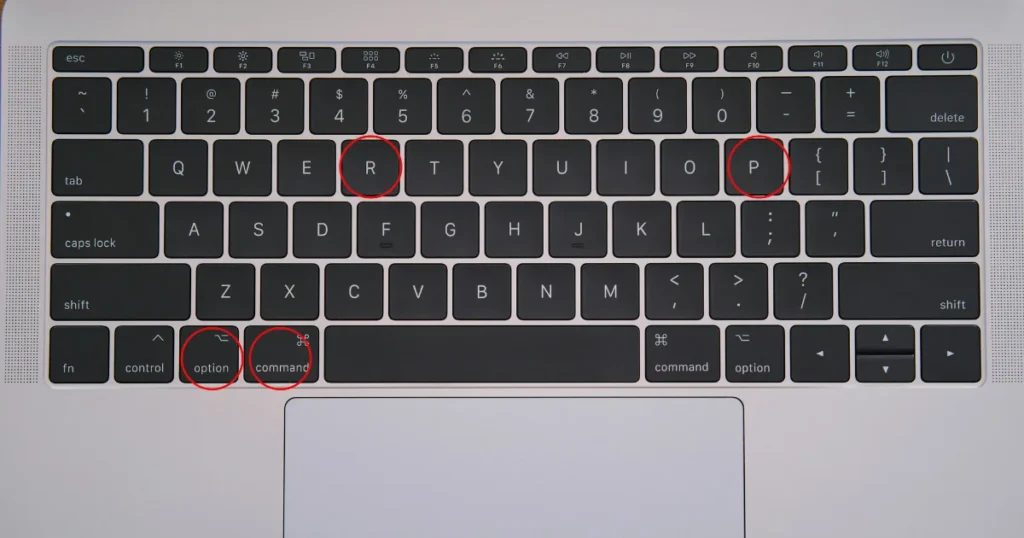
Step 2: Locate the Required Keys
You’ll need to press and hold:
Option (⌥) + Command (⌘) + P + R
Step 3: Turn On Your Mac
Press the Power button and immediately hold all four keys together:
Option + Command + P + R
Step 4: Continue Holding the Keys
Keep holding the keys for approximately 20 seconds.
Depending on your Mac model:
- Macs with startup chime may chime a second time.
- Macs with Apple T2 Security Chip may show the Apple logo appear and disappear a second time.
Step 5: Release the Keys
Release all keys and allow the Mac to boot normally.
Step 6: Verify Settings
After startup, check and reconfigure any settings that may have reset, including:
- Speaker volume
- Screen resolution
- Startup disk preferences
- Time and date settings
What Is the SMC on an Intel Mac?
SMC stands for System Management Controller.
The SMC controls low-level hardware functions such as:
- Battery management
- Power functions
- Charging behavior
- Thermal management
- Fan control
- Sleep and wake functions
- Keyboard backlighting
- LED indicators
If these components behave abnormally, resetting the SMC may help.
Common Signs You Need to Reset the SMC
- Battery not charging properly
- Fans running constantly
- Mac overheating
- Sleep issues
- Power button not responding
- Keyboard backlight problems
- MagSafe charging light behaving incorrectly
- Unexpected shutdowns
How to Reset SMC on Intel MacBook with T2 Security Chip
Applicable Models:
- MacBook Air (2018 and later Intel models)
- MacBook Pro (2018–2020 Intel models)
Step 1: Shut Down the Mac
Turn off your Mac completely.
Step 2: Press and Hold These Keys
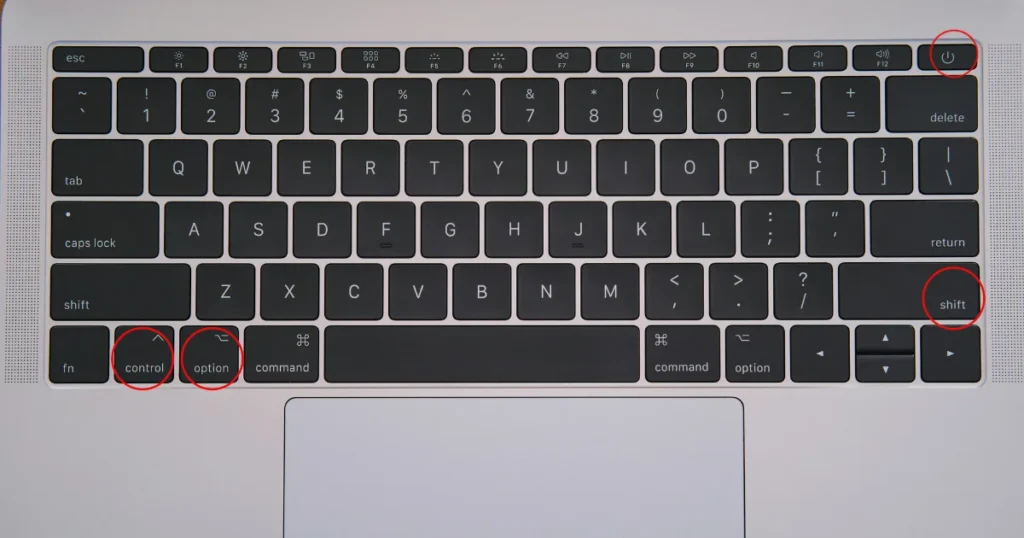
On the built-in keyboard, press and hold:
- Control (Left side)
- Option (Left side)
- Shift (Right side)
Hold for 7 seconds.
Step 3: Add the Power Button
Without releasing the other keys, press and hold the Power button as well.
Hold all four keys for another 7 seconds.
Step 4: Release All Keys
Release all keys simultaneously.
Step 3: Add the Power Button
Without releasing the other keys, press and hold the Power button as well.
Hold all four keys for another 7 seconds.
Step 4: Release All Keys
Release all keys simultaneously.
Step 5: Wait
Wait approximately 10 seconds.
Step 6: Turn On Your Mac
Press the Power button normally.
The SMC reset process is complete.
How to Reset SMC on Intel MacBook Without T2 Chip
Applicable Models:
- MacBook Air (2017 and earlier)
- MacBook Pro (2017 and earlier)
- MacBook with non-removable battery
Step 1: Shut Down the Mac
Power off your Mac completely.
Step 2: Press and Hold
Hold:
Shift + Control + Option (Left Side)
Then press and hold the Power button.
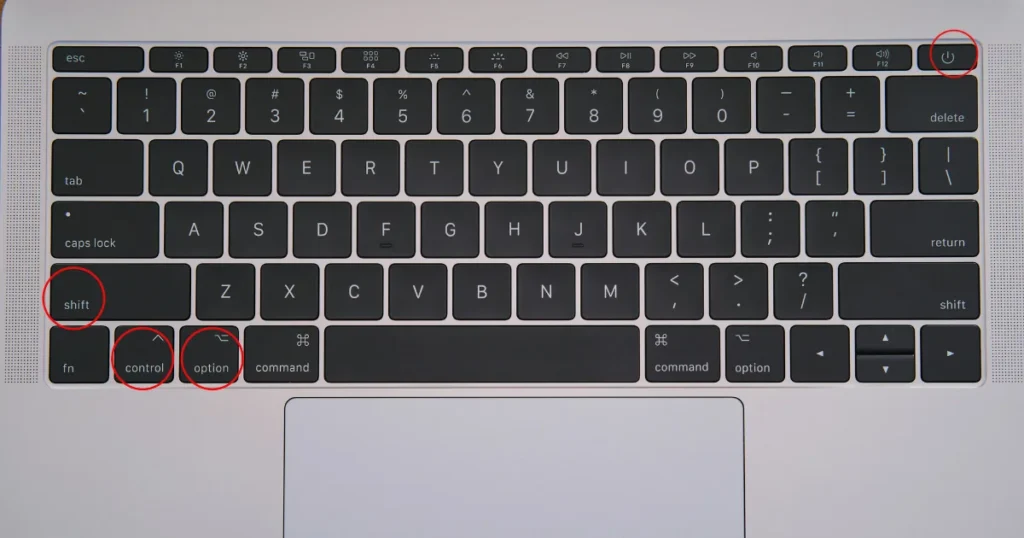
Step 3: Hold for 10 Seconds
Keep all keys pressed for approximately 10 seconds.
Step 4: Release Keys
Release all keys.
Step 5: Turn On the Mac
Press the Power button to start your Mac.
How to Reset SMC on Intel MacBook with Removable Battery
Applicable to older MacBook models only.
Step 1: Shut Down the Mac
Turn off the Mac completely.
Step 2: Remove the Battery
Disconnect the battery from the MacBook.
Step 3: Hold the Power Button
Press and hold the Power button for 5 seconds.
Step 4: Reinstall the Battery
Insert the battery back into the MacBook.
Step 5: Power On
Turn on the Mac normally.
How to Reset SMC on Intel Desktop Macs
Applicable Models:
- iMac
- Mac mini
- Mac Pro
Step 1: Shut Down the Mac
Turn off the computer completely.
Step 2: Disconnect Power
Unplug the power cord.
Step 3: Wait 15 Seconds
Leave the Mac disconnected from power.
Step 4: Reconnect Power
Plug the power cable back in.
Step 5: Wait 5 Seconds
Allow the system to stabilize.
Step 6: Turn On the Mac
Press the Power button.
The SMC reset is now complete.
Difference Between PRAM/NVRAM Reset and SMC Reset
| PRAM/NVRAM Reset | SMC Reset |
| Fixes startup settings | Fixes hardware management issues |
| Resolves display problems | Resolves battery issues |
| Corrects startup disk errors | Fixes charging problems |
| Resets volume settings | Fixes fan behavior |
| Helps with boot issues | Helps with sleep and power issues |
Frequently Asked Questions
Does Resetting PRAM Delete Data?
No. Resetting PRAM/NVRAM does not erase personal files, applications, or documents.
Does Resetting SMC Delete Anything?
No. An SMC reset only refreshes hardware management settings and does not affect your data.
Should I Reset Both PRAM and SMC?
If you’re troubleshooting persistent hardware or startup issues on an Intel Mac, resetting both PRAM/NVRAM and SMC can be a useful diagnostic step.
Can Apple Silicon Macs Reset SMC?
No. Apple Silicon (M1, M2, M3, and newer) Macs do not have a separate SMC. The troubleshooting process is different from Intel-based Macs.
Final Thoughts
Resetting PRAM/NVRAM and SMC is one of the most effective troubleshooting methods for Intel-based Macs. Whether you’re dealing with startup issues, charging problems, fan noise, display glitches, or unexpected hardware behavior, these reset procedures can often restore normal functionality without requiring a repair.
Follow the appropriate instructions for your specific Intel Mac model, and always ensure your Mac is completely powered off before starting either reset process.