
Mac Firmware Recovery: What You Need to Know
A Mac that suddenly stops booting, gets stuck during startup, or shows a blank screen can be difficult to diagnose. While many Mac problems can be resolved using macOS Recovery, Safe Mode, Disk Utility, or a macOS reinstall, some situations can involve the Mac’s firmware.
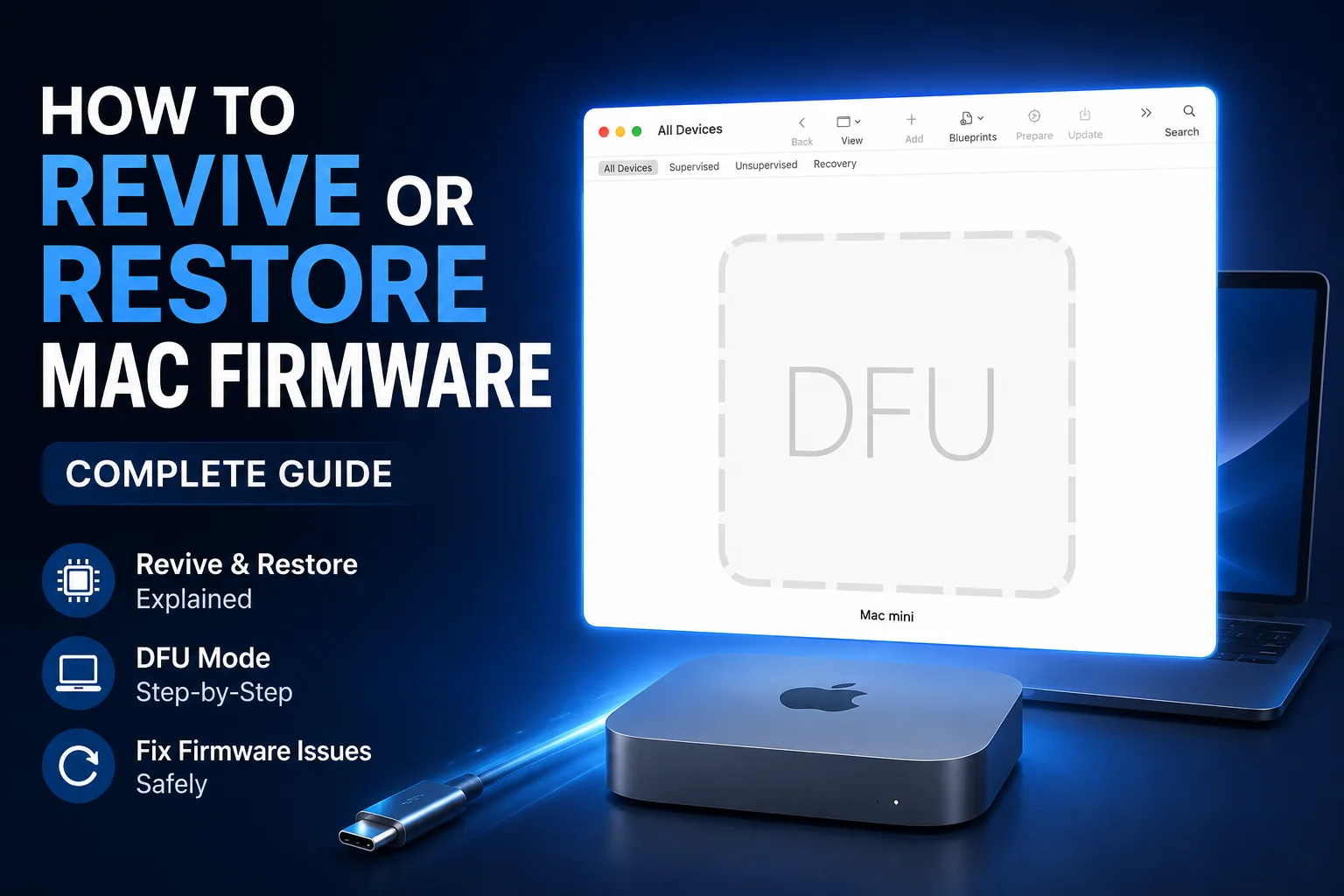
For compatible Macs, Apple provides a firmware recovery process that can revive or restore the Mac using another Mac and the appropriate Apple recovery software and connection.
This guide explains what Mac firmware recovery is, when you may need it, what Revive and Restore mean, how DFU mode fits into the process, and what you should know before attempting a firmware recovery.
Important: Firmware recovery is not a solution for every Mac problem. A Mac that won’t turn on can have a software, firmware, power, display, storage, or logic-board problem. Proper diagnosis is important before attempting a restore.
If your Mac won’t boot, you may want to try our How to Fix or Restore a Mac That Won’t Boot guide before moving to firmware recovery.
What Is Mac Firmware Recovery?
Mac firmware recovery is a process used to recover or restore the firmware of supported Mac computers.
Firmware is low-level software that helps the Mac’s hardware communicate and start the operating system. If firmware becomes corrupted or a firmware-related process fails, the Mac may not start normally.
Apple provides a recovery process for compatible Macs, including Macs with Apple silicon and certain Intel Macs equipped with the Apple T2 Security Chip.
Firmware recovery is different from simply reinstalling macOS. A macOS reinstall deals primarily with the operating system, while firmware recovery addresses the lower-level software required for the Mac to operate correctly.
What Is Apple Configurator?
Apple Configurator is an Apple application primarily designed for configuring and managing Apple devices such as iPhone, iPad, and Apple TV.
It is important not to confuse Apple Configurator with the entire Mac firmware recovery process.
For Mac firmware recovery, Apple provides specific procedures involving a second Mac, DFU mode, an appropriate cable, and Apple’s current recovery tools and software requirements.
Depending on the Mac model and Apple’s current software workflow, the tools and exact steps can differ.
Which Macs Support Firmware Recovery?
Firmware recovery is primarily relevant to supported Macs with:
- Apple silicon
- Apple T2 Security Chip
Apple silicon includes Macs powered by Apple’s M-series processors.
Some Intel-based Macs also contain the T2 Security Chip and support Apple’s firmware recovery procedures.
Because the procedure varies by model, always identify the exact Mac before beginning.
When Should You Consider Mac Firmware Recovery?
Firmware recovery may be appropriate when a compatible Mac:
- Will not boot normally
- Shows a persistent blank screen
- Becomes stuck during startup
- Experiences a firmware-related failure
- Has problems following a failed software or firmware update
- Cannot successfully start the normal recovery environment
- Requires its firmware or recovery environment to be recovered
However, these symptoms do not automatically mean the firmware is damaged.
For example, a Mac with a failed display can appear completely dead even though the logic board is working. Similarly, a power or logic-board fault can prevent the Mac from starting.
This is why proper diagnosis is important.
What Is DFU Mode on a Mac?
DFU, or Device Firmware Update mode, is a special low-level state used to communicate with the firmware of a supported Apple device.
During Mac firmware recovery, the affected Mac is placed into DFU mode and connected to another compatible Mac.
The second Mac can then communicate with the affected Mac and perform the appropriate recovery operation.
The exact procedure for entering DFU mode depends on the Mac model.
Apple silicon Macs and Intel Macs with the T2 Security Chip use different procedures, so you should always follow the instructions applicable to your specific Mac.
What Is a Mac Revive?

Mac firmware recovery using Revive is designed to recover the firmware and recovery environment of a supported Mac without intentionally erasing the Mac’s data..
This makes Revive particularly useful when:
- The Mac has a suspected firmware problem
- The Mac cannot boot normally
- You want to attempt recovery without immediately erasing the computer
- Important data is stored on the Mac
If your data is important, Revive is generally the preferable recovery option to try before an operation that erases the Mac, when supported and appropriate.
However, you should never consider any recovery procedure a guarantee of data preservation. If the data is extremely important and there is no backup, professional assistance may be the safest approach.
What Is a Mac Restore?
A Restore is a more destructive recovery process.
A restore erases the Mac and reinstalls the required firmware and operating system components.
This means you should only choose Restore when:
- You have a reliable backup
- The data on the Mac is not needed
- You have already attempted appropriate non-destructive recovery
- You understand that the Mac will be erased
Revive vs Restore
| Feature | Revive | Restore |
| Main purpose | Recover firmware/recovery environment | Completely restore the Mac |
| Data | Designed not to intentionally erase data | Erases the Mac |
| Best for | Firmware-related recovery while preserving data | Complete recovery when erasing is acceptable |
| Data backup | Still recommended | Strongly recommended |
| Destructive? | Generally non-destructive to user data | Yes |
If your Mac contains important files, do not choose Restore without understanding the data-loss consequences.
What Do You Need for Mac Firmware Recovery?
The exact requirements depend on your Mac model and Apple’s current recovery procedure, but you will generally need:
1. A Second Mac
A working Mac is used to communicate with the affected Mac during firmware recovery.
2. A Compatible Cable
You need a suitable USB-C or Thunderbolt cable capable of data transfer.
A cable that only supports charging may not work.
3. Internet Access
The recovery process may require downloading firmware or operating-system components from Apple.
4. The Correct DFU Procedure
The affected Mac needs to be placed into DFU mode using the correct procedure for that particular model.
5. Sufficient Power
Make sure both Macs have sufficient power and avoid interrupting the process.
How to Revive Mac Firmware
The exact steps vary between Mac models, so this is a general overview rather than a universal button-combination guide.
Step 1: Identify Your Mac
First determine the exact Mac model and whether it uses Apple silicon or an Intel processor with the T2 Security Chip.
This is important because the DFU procedure and supported recovery process can differ.
Step 2: Prepare the Working Mac
Start the working Mac and make sure it meets the current software requirements for the recovery process.
Install or open the appropriate Apple recovery utility as required for your particular procedure.
Step 3: Connect the Two Macs
Connect the affected Mac to the working Mac using an appropriate data-capable USB-C or Thunderbolt cable.
Use the port specified for your particular Mac model.
Step 4: Enter DFU Mode
Place the affected Mac into DFU mode using Apple’s instructions for that specific model.
When successful, the affected Mac should be recognized by the host Mac.
Step 5: Select Revive
If the Mac is detected and the Revive option is available, select Revive when you are attempting to recover the firmware without intentionally erasing user data.
Step 6: Wait for the Process to Finish
Allow the recovery process to complete.
Do not disconnect the cable, turn off the host Mac, or interrupt the process while it is running.
Once completed, check whether the affected Mac can boot normally.
What If Revive Does Not Work?
If Revive does not resolve the problem, do not immediately assume that Restore will fix everything.
The Mac could have another underlying problem.
Further troubleshooting may involve:
- macOS Recovery
- Disk Utility
- macOS reinstallation
- If firmware recovery isn’t required, you can also follow our guide on How to Install or Reinstall macOS on an M4 MacBook.
- Apple Diagnostics
- Startup troubleshooting
- Hardware diagnostics
- Storage testing
- Power and logic-board diagnostics
If the Mac continues to fail after firmware recovery, professional diagnostics may be necessary.
When Should You Use Restore?
Restore should generally be considered when the Mac requires a complete recovery and erasing the computer is acceptable.
Before restoring, make sure:
- Important files are backed up
- You understand that the Mac will be erased
- You have ruled out other possible causes where practical
- The Mac is actually compatible with the recovery procedure
If there is important data on the Mac and no backup exists, do not rush into a Restore.
Can Firmware Recovery Fix a Mac That Won’t Turn On?
It can help in some cases, but there is no guarantee.
A Mac that appears completely dead could have a firmware problem, but it could also have a hardware failure.
Possible causes include:
- Logic-board failure
- Power-management problems
- Battery failure
- Display failure
- Liquid damage
- USB-C or Thunderbolt issues
- Storage problems
- Firmware corruption
- macOS problems
For this reason, “Mac won’t turn on” is a symptom, not a diagnosis.
For Intel Macs with startup or power-related issues, you can also try our guide on How to Reset PRAM/NVRAM and SMC on Intel Macs before considering firmware recovery.
What If the Mac Is Not Detected in DFU Mode?
If the host Mac does not detect the affected Mac, check the basics first:
- Make sure the correct cable is being used.
- Confirm that the cable supports data transfer.
- Try the correct port for the Mac model.
- Make sure the affected Mac is actually in DFU mode.
- Check the host Mac’s software requirements.
- Restart the procedure and carefully follow the model-specific instructions.
If the Mac still cannot be detected, there may be a deeper software or hardware problem.
Can You Recover a Mac Without Losing Data?
Potentially, yes.
The purpose of Revive is to recover supported firmware and the recovery environment without intentionally erasing user data.
However, if the Mac has a serious underlying hardware or storage problem, firmware recovery cannot guarantee that your files will remain accessible.
If you have critical files that are not backed up, professional data-preservation and diagnostic assistance should be considered before performing a destructive restore.
Apple Configurator vs. Mac Recovery
It is important to understand that different Apple recovery tools have different purposes.
macOS Recovery
macOS Recovery provides tools for troubleshooting and repairing the operating system.
It can be useful for:
- Reinstalling macOS
- Using Disk Utility
- Changing certain startup options
- Troubleshooting startup problems
Mac Firmware Recovery
Firmware recovery operates at a lower level and is intended for supported firmware-related problems.
It can be used to revive or restore compatible Macs.
Apple Configurator
Apple Configurator is primarily a device-management and configuration tool for Apple’s supported devices. It should not be described as a universal Mac repair application.
Understanding these differences can help prevent unnecessary restores and data loss.
Important Precautions Before Mac Firmware Recovery
Before attempting a firmware recovery, keep these points in mind:
- Identify the exact Mac model.
- Determine whether it uses Apple silicon or the T2 Security Chip.
- Back up important data whenever possible.
- Use a reliable data-capable cable.
- Use the correct port.
- Follow the correct DFU instructions for your model.
- Keep both Macs powered during the procedure.
- Do not disconnect the cable during recovery.
- If data is important, consider Revive before Restore when appropriate.
- If recovery repeatedly fails, have the Mac professionally diagnosed.
When Should You Contact a Professional?
You should consider professional Mac service if:
- Your Mac is completely unresponsive.
- You cannot enter DFU mode.
- The host Mac cannot detect the affected Mac.
- Firmware recovery repeatedly fails.
- The Mac still does not boot after recovery.
- The Mac has suffered liquid or physical damage.
- Important data is not backed up.
- You are unsure which recovery method applies to your Mac.
Attempting repeated firmware restores without understanding the underlying fault may not solve the problem and could result in unnecessary data loss.
Mac Repair and Diagnostics by MacLife
If your Mac is not booting, stuck on the Apple logo, showing a blank screen, or experiencing a suspected firmware problem, professional diagnosis can help identify the actual cause.
At MacLife, we provide professional Apple product diagnostics, Mac repair, hardware troubleshooting, software support, and other Mac services in Islamabad.
Our technicians can assess whether your Mac’s problem is related to macOS, firmware, storage, power, or hardware and recommend the appropriate solution.
Visit MacLife to learn more about our Mac repair and service options.
What is Mac firmware recovery?
Mac firmware recovery is a process used to recover or restore firmware on supported Mac computers when firmware-related problems prevent normal operation.
What is Mac Revive?
Mac Revive is designed to recover the firmware and recovery environment of a supported Mac without intentionally erasing user data.
What is Mac Restore?
Mac Restore is a more complete recovery process that erases the Mac and reinstalls the required firmware and operating system components.
Does Mac Restore erase data?
Yes. A Restore erases the Mac, so important data should be backed up before performing one.
Can Apple Configurator fix a Mac?
Apple Configurator is primarily designed for configuring and managing supported Apple devices. Mac firmware recovery is a separate Apple recovery process and should not be presented as a general-purpose Mac repair tool.
Can firmware recovery fix every Mac that won’t boot?
No. A Mac that won’t boot can have many possible causes, including firmware, macOS, power, storage, display, or logic-board problems.
Can I perform Mac firmware recovery myself?
Some users can perform the procedure if they have a compatible second Mac, the correct cable, and follow Apple’s instructions for the specific Mac model. If your Mac contains important data or you are unsure about the procedure, professional assistance is recommended.
Final Thoughts
Mac firmware recovery can be an effective solution for certain serious startup and firmware problems, particularly on supported Apple silicon and T2-equipped Macs.
The most important thing is understanding the difference between Revive and Restore.
If preserving your data is important, a Revive should generally be considered before a destructive Restore when it is supported and appropriate. A Restore should only be performed when you understand that the Mac will be erased.
And remember: not every Mac that won’t boot has a firmware problem. Proper diagnosis is often the most important step.
If your Mac is experiencing startup, firmware, software, or hardware problems, MacLife can help diagnose the issue and recommend the right repair solution.
Last Updated: August 2026
Disclaimer: Apple’s recovery procedures, supported Mac models, software requirements, and available tools can change over time. Always check Apple’s latest official documentation for the procedure applicable to your specific Mac model before attempting firmware recovery.
For the latest model-specific requirements and instructions, always check Apple’s official How to revive or restore Mac firmware guide.