
Introduction
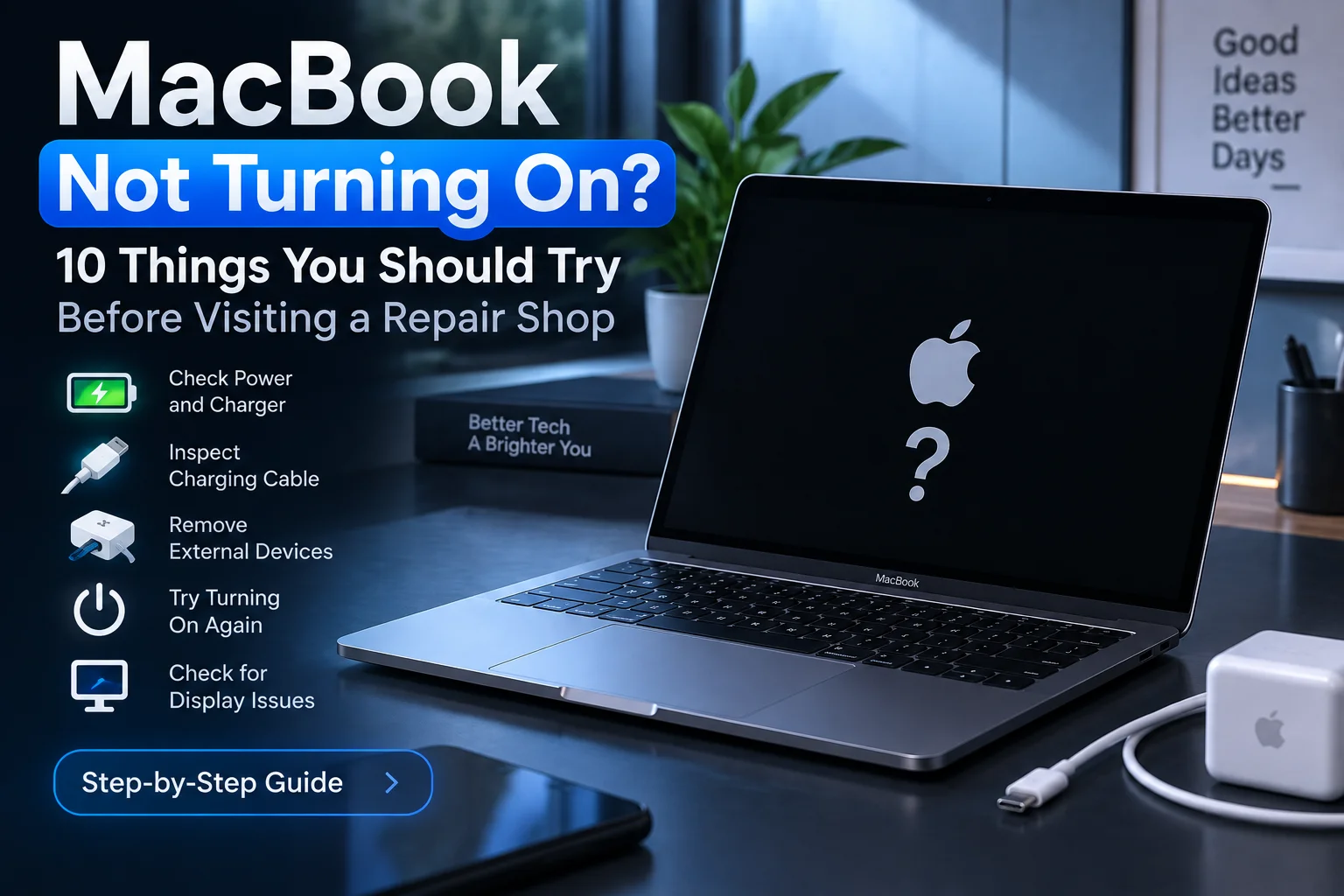
If your MacBook, iMac, or Mac Mini is not turning on, stuck on the Apple logo, showing a blank screen, or macOS is not loading properly, don’t worry. This is a common issue that can usually be fixed without replacing your device.
Most Mac startup problems can be solved using Apple’s built-in tools like Recovery Mode, Disk Utility, or reinstalling macOS.
In this guide, you’ll learn step-by-step methods to fix and restore a Mac that is not booting, along with when professional repair is needed.
Common Reasons a Mac Won’t Boot
A Mac may fail to start due to:
- Corrupted macOS system files
- Failed macOS update
- Startup disk errors
- Full or damaged storage drive
- Hardware issues (SSD, logic board, battery)
- System freeze on Apple logo or loading bar
Step 1: Try Basic Fixes First
Before using advanced methods, try these simple solutions:
Force Restart
- Hold the Power button for 10 seconds
- Wait a few seconds
- Turn your Mac back on
Disconnect External Devices
Remove all external accessories:
- USB drives
- External hard drives
- Printers or dongles
Then restart your Mac again.
Step 2: Boot into macOS Recovery Mode
Recovery Mode is the main built-in tool for fixing Mac system issues.
Apple Silicon (M1, M2, M3, M4)
- Turn off your Mac
- Hold the Power button
- Wait until “Loading startup options” appears
- Click Options → Continue
Intel Mac
- Turn off your Mac
- Turn it on and immediately press and hold:
Command (⌘) + R
Step 3: Use Disk Utility to Repair Your Drive
Once in Recovery Mode:
- Open Disk Utility
- Select your main drive (Macintosh HD)
- Click First Aid
- Wait for the repair process to complete
This can fix disk errors that prevent macOS from booting.
Step 4: Reinstall macOS
If your Mac still does not boot properly:
- Open macOS Utilities
- Select Reinstall macOS
- Follow on-screen instructions
This process:
- Replaces system files
- Usually keeps your data safe
- Fixes most software-related issues
Step 5: Restore Mac from Time Machine Backup
If you have a backup available:
- Open Recovery Mode
- Select Restore from Time Machine
- Choose your backup date
- Start the restore process
This will return your Mac to a working previous state.
Step 6: Advanced Fix for Apple Silicon Macs
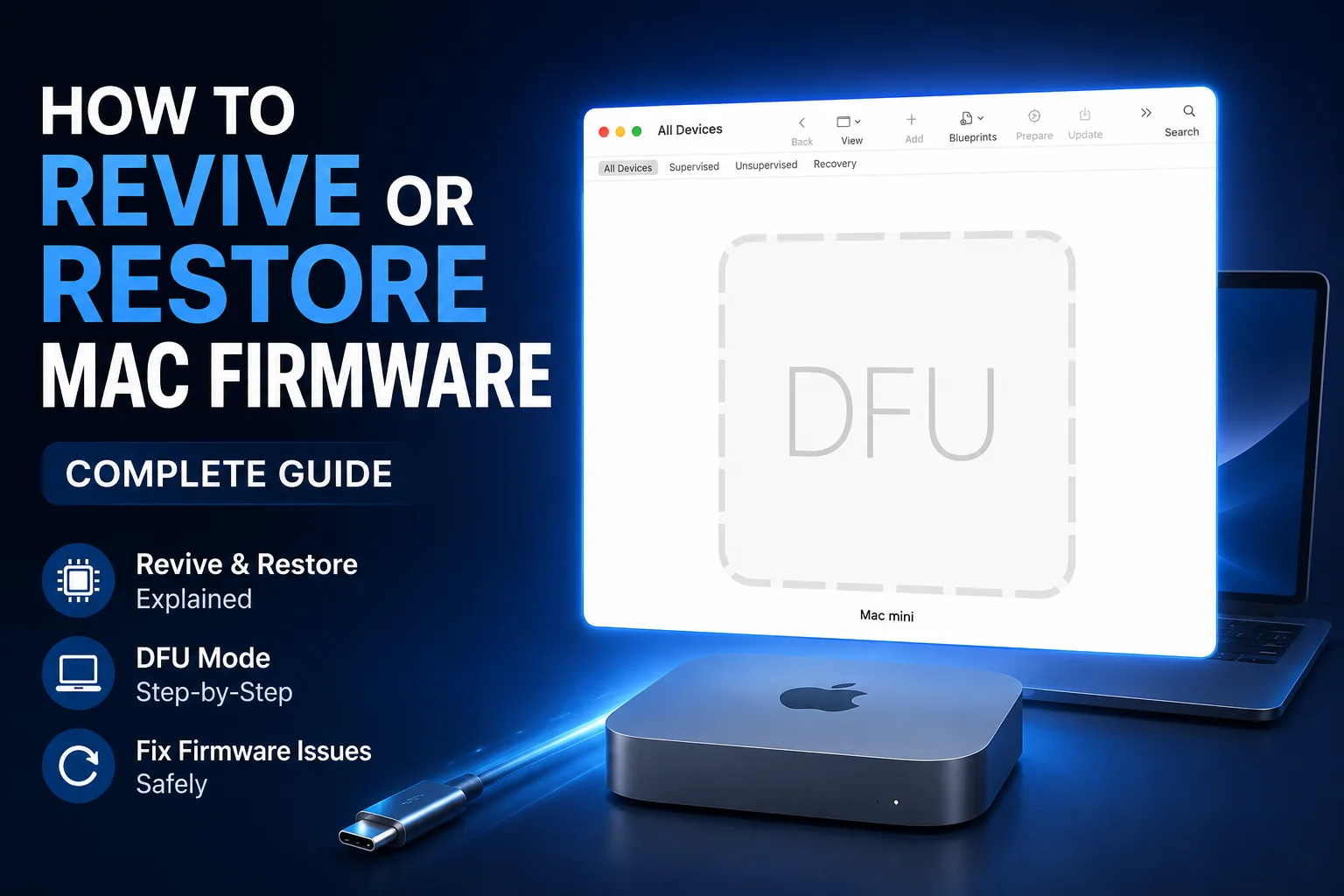
If your Mac (M1/M2/M3/M4) is completely unresponsive or stuck, it may require Apple Configurator.
There are two options:
Revive Mac
- Fixes firmware issues
- Does not erase your data
Restore Mac
- Completely erases the Mac
- Reinstalls macOS fresh
This method requires another Mac and a USB-C cable.
Step 7: Boot in Safe Mode
Safe Mode helps diagnose software issues.
Intel Mac:
Hold Shift during startup
Apple Silicon Mac:
Hold Power → select disk → hold Shift → Continue in Safe Mode
Safe Mode helps:
- Detect system conflicts
- Fix startup issues
- Improve system stability
When You Should Seek Professional Mac Repair
If your Mac still does not work after trying all steps, the issue may be hardware-related.
You should get professional help if:
- Mac does not turn on at all
- No display or charging response
- SSD not detected in Disk Utility
- Repeated system crashes
- Liquid or physical damage
Professional Mac Repair Services (Maclife.pk)
At MacLife.pk, we provide complete Mac repair solutions, including:
- macOS installation and recovery
- MacBook not booting repair
- Apple Silicon revive and restore
- Hardware diagnostics
- SSD and storage repair support
- Data recovery assistance
We help customers in Pakistan and also provide remote support where possible.
If your Mac is not booting or stuck, our team can diagnose and repair it professionally.
Final Thoughts
Most Mac startup issues can be fixed using Recovery Mode, Disk Utility, or reinstalling macOS. However, if the issue is hardware-related, professional repair is the safest option.
If your Mac is not working properly, MacLife.pk can help you restore or repair it quickly and safely.