
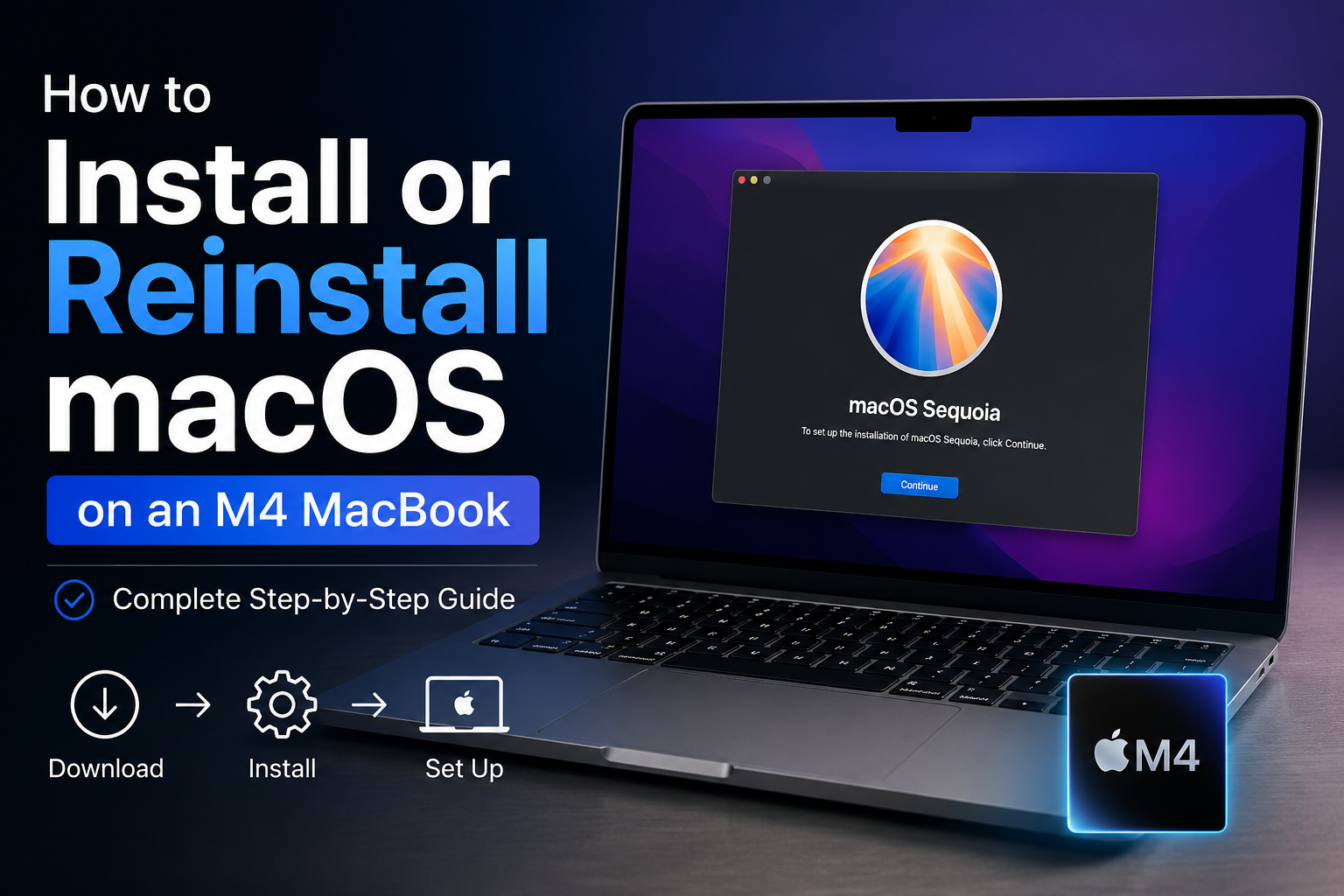
Apple’s M4-powered MacBook lineup delivers exceptional performance, battery life, and security. Whether you’ve purchased a new MacBook with the M4 chip or need to reinstall macOS due to system issues, this guide walks you through the entire process.
What You’ll Need Before You Start
Before installing or reinstalling macOS on your M4 MacBook, make sure you have:
- A stable internet connection
- Your Apple ID credentials
- A power adapter connected to the laptop
- A backup of important files (if reinstalling)
- At least 30 GB of free storage space
Understanding macOS Installation on M4 Macs
Unlike older Intel-based Macs, M4 MacBooks use Apple Silicon architecture. Apple has simplified the installation process, making it easier and more secure.
Most users will use one of these methods:
- Initial setup on a brand-new MacBook
- Reinstall macOS using Recovery Mode
- Erase and reinstall macOS for a fresh start
Method 1: Setting Up macOS on a New M4 MacBook
Step 1: Power On Your MacBook
- Open the MacBook lid.
- Press the power button if necessary.
- Wait for the Apple logo to appear.
Step 2: Select Your Language and Region
- Choose your preferred language.
- Select your country or region.
- Click Continue.
Step 3: Connect to Wi-Fi
- Select your wireless network.
- Enter the Wi-Fi password.
- Wait for the connection to establish.
Step 4: Set Up Your Apple ID
- Sign in using your Apple ID.
- Enable two-factor authentication if prompted.
- Accept Apple’s terms and conditions.
Step 5: Configure Privacy Settings
Review and customize:
- Location Services
- Siri
- Analytics Sharing
- Screen Time
- Find My Mac
Step 6: Create a User Account
- Enter your full name.
- Choose an account name.
- Create a strong password.
- Set password recovery options.
Step 7: Complete Setup
After configuration, macOS will prepare the desktop and finalize the installation.
Method 2: Reinstall macOS Using Recovery Mode
If your system is corrupted or experiencing software issues, Recovery Mode is the fastest solution.
Step 1: Shut Down the Mac
- Click the Apple menu.
- Select Shut Down.
- Wait until the Mac powers off completely.
Step 2: Enter Recovery Mode
- Press and hold the power button.
- Continue holding until “Loading Startup Options” appears.
- Click Options.
- Select Continue.
Step 3: Access macOS Recovery
You may be asked to:
- Select a user account
- Enter the administrator password
After authentication, Recovery Mode will open.
Step 4: Reinstall macOS
- Select Reinstall macOS.
- Click Continue.
- Follow the on-screen instructions.
- Select the destination disk (usually Macintosh HD).
- Begin installation.
Step 5: Wait for Installation to Complete
The installation may take 30–90 minutes depending on:
- Internet speed
- Mac model
- macOS version being installed
Your Mac may restart several times during the process.
Method 3: Erase and Perform a Clean Installation
Use this method if you want a completely fresh system.
Step 1: Enter Recovery Mode
Follow the same Recovery Mode procedure described above.
Step 2: Open Disk Utility
- Select Disk Utility.
- Click Continue.
Step 3: Erase the Startup Disk
- Select Macintosh HD.
- Click Erase.
- Choose APFS as the format.
- Confirm the erase process.
Warning: This permanently deletes all files and applications.
Step 4: Reinstall macOS
- Exit Disk Utility.
- Select Reinstall macOS.
- Follow the installation wizard.
Common Installation Problems and Solutions
Mac Won’t Enter Recovery Mode
Try:
- Holding the power button longer
- Ensuring the Mac is fully powered off first
- Connecting to power
Installation Gets Stuck
Possible fixes:
- Restart the Mac
- Check internet connectivity
- Retry installation from Recovery Mode
Not Enough Storage Space
Solutions:
- Remove unnecessary files
- Use external storage for backups
- Erase the drive and perform a clean installation
Best Practices for M4 MacBook Users
To keep your Mac running smoothly:
- Keep macOS updated
- Use Time Machine for regular backups
- Avoid installing software from untrusted sources
- Monitor available storage space
- Restart the Mac occasionally
Final Thoughts
Installing or reinstalling macOS on an M4 MacBook is straightforward thanks to Apple’s modern recovery tools. Whether you’re setting up a new machine, troubleshooting software issues, or performing a clean installation, Recovery Mode makes the process simple and secure.
By following the steps in this guide, you’ll have your M4 MacBook running the latest version of macOS with minimal effort.